はじめに
Three.jsでフィルムストリップを螺旋状に配置する & 適当に好きなカラー映画を10作品選出#threejs #glsl pic.twitter.com/jYFHudEBtb
— かめのの (@kameno_no3) October 24, 2026
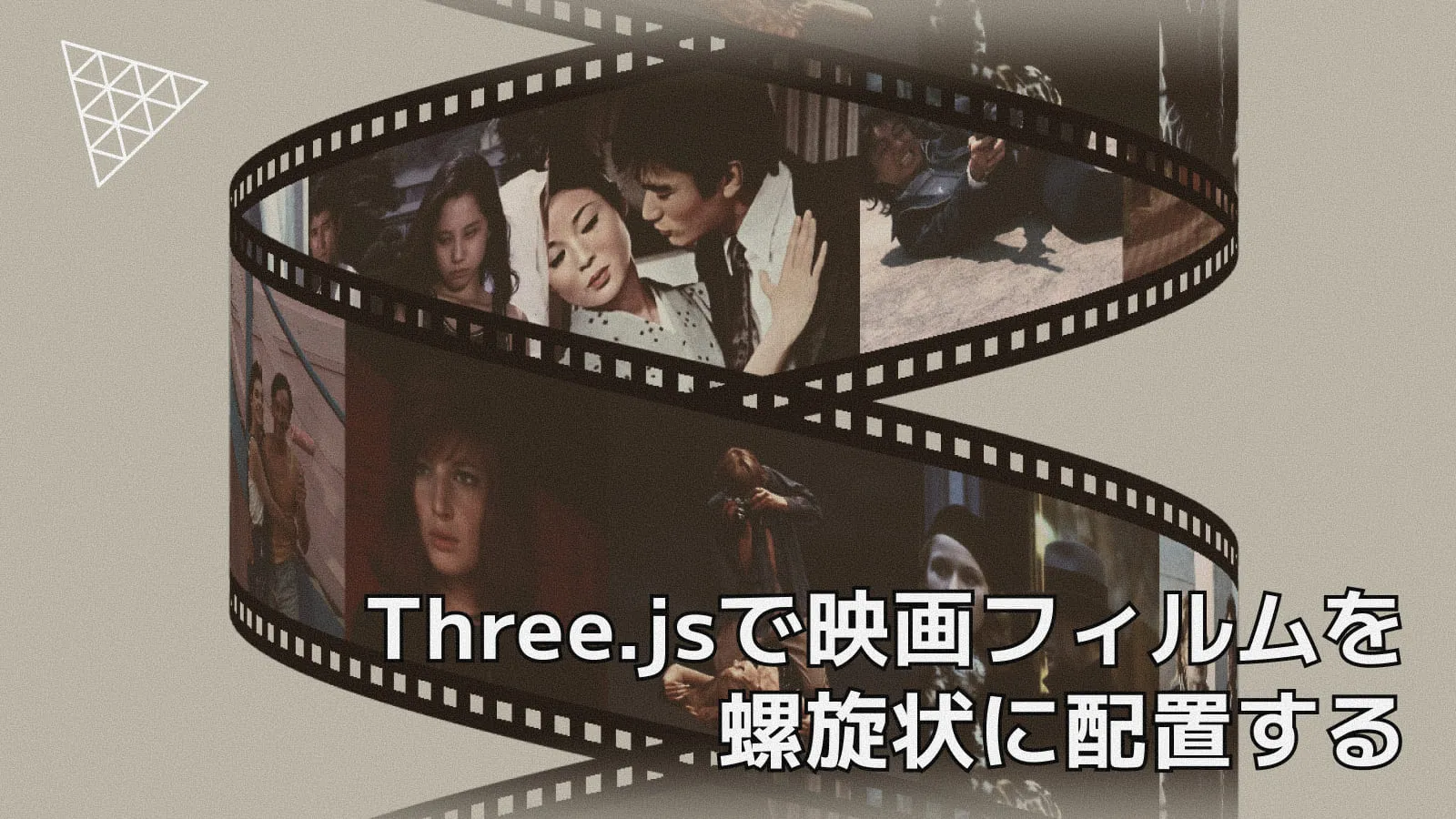
前回の記事では、Three.jsでの3Dカルーセルの実装方法を解説しました。今回は、画像を映画のフィルムのような形にして、螺旋状に配置する3D画像スライダーの作り方を解説します。
デモでは、螺旋の半径やフィルムの幅を変更できるようなものになっているので、実際に動作を確認してみてください。
Three.jsの開発環境は以前の記事を参考にしてください。
この記事のデモのコードは以下のGitHubリポジトリにあるので、ぜひ参考にしてください。
実装の考え方
今回の実装の考え方は以下の通りです。
- Canvas2Dでフィルムの見た目を生成
- DataArrayTextureに複数画像をまとめる
- BufferGeometryを手動生成
- 円筒座標を使って螺旋状に配置
- フラグメントシェーダーで画像ごとの表示を制御
今回のデモのパラメータは次のように設定しています。
const PARAMS = {
radius: 1.2, // 螺旋の半径
waveLength: 1.7, // 1周で上がる高さ
filmWidth: 0.5, // フィルムの幅
}それぞれの説明は以下の通りです。
| パラメータ | 説明 |
|---|---|
| radius | 螺旋の半径 |
| waveLength | 1周したときにY方向へどれだけ進むか |
| filmWidth | フィルムの幅、太さ |
今回は全体を管理しているAppクラスと、フィルムストリップを螺旋状に配置するFilmSpiralクラスの2つのクラスで構成されています。
それでは、フィルムストリップを螺旋状に配置するFilmSpiralクラスから見ていきましょう!
FilmSpiralクラスの実装
FilmSpiralクラスのコンストラクタは次のようになり、画像テクスチャと各種オプション、初期回転角を受け取ります。
export type FilmSpiralOptions = {
radius: number; // 螺旋の半径
waveLength: number; // 1周で上がる高さ
filmWidth: number; // フィルムの幅
}
export class FilmSpiral {
// ...
constructor(sources: THREE.Texture[], options: FilmSpiralOptions, initialRotation = 1.2) {
this.radius = options.radius;
this.waveLength = options.waveLength;
this.filmWidth = options.filmWidth;
this.rotation = initialRotation;
this.slideCount = sources.length;
const cameraHalf = 1;
const neededHeight = cameraHalf * 2 + this.waveLength * 3;
this.turns = Math.ceil(neededHeight / this.waveLength);
this.build(sources);
this.apply();
}
}次のコードは、フィルムを無限ループさせるので、必要な螺旋の周回数(turns)を計算しています。
const cameraHalf = 1;
const neededHeight = cameraHalf * 2 + this.waveLength * 3;
this.turns = Math.ceil(neededHeight / this.waveLength);カメラの見える高さは 2(上下 ±1)になります。それにピッチ3周分の余裕を足し、その高さをwaveLength(1周で上がる高さ)で割った周数だけ帯を作ります。デフォルトのwaveLength: 1.7なら5周になります。
続いては、実際にフィルムストリップを構築するbuildメソッドの実装についてみていきます。
buildメソッドの実装
buildメソッドのコードは次のようになります。
private build(sources: THREE.Texture[]) {
const films = sources.map(source => this.drawFilm(source.image as HTMLImageElement));
const texture = this.createFilmArray(films);
const geometry = this.createGeometry(films);
const material = new THREE.ShaderMaterial({
glslVersion: THREE.GLSL3,
vertexShader: vertex,
fragmentShader: fragment,
uniforms: {
uFilms: { value: texture },
},
side: THREE.DoubleSide,
});
this.geometry = geometry;
this.material = material;
this.filmTexture = texture;
this.group.add(new THREE.Mesh(geometry, material));
}sourcesで渡された画像テクスチャを元に、フィルムの見た目を生成し、配列テクスチャやジオメトリを作成してマテリアルに設定しています。
glslVersion: THREE.GLSL3は、後ほど説明するDataArrayTextureをシェーダーで扱うために、GLSL 3.00 ESを使用するために指定しています。
続いては、フィルムの見た目を生成するdrawFilmメソッドについて見ていきましょう。
drawFilmでフィルムの見た目を作る
drawFilmメソッドは次のようになります。画像をキャンバスに描画し、フィルムの穴を開け、キャンバスと写真部分のUV座標を計算して返します。
type BakedFilm = {
canvas: HTMLCanvasElement;
photoMin: THREE.Vector2;
photoMax: THREE.Vector2;
}
const FILM_COLOR = '#000000';
export class FilmSpiral {
// ...
private drawFilm(image: HTMLImageElement): BakedFilm {
const photoSize = 512;
const pad = Math.round(photoSize * 0.05);
const width = photoSize + pad * 2;
const hole = width / 10 / 2;
const canvas = document.createElement('canvas');
canvas.width = width;
canvas.height = photoSize + pad * 4 + hole * 2;
const context = canvas.getContext('2d', { willReadFrequently: true }) as CanvasRenderingContext2D;
context.fillStyle = FILM_COLOR;
context.fillRect(0, 0, canvas.width, canvas.height);
const scale = Math.max(photoSize / image.width, photoSize / image.height);
const drawWidth = image.width * scale;
const drawHeight = image.height * scale;
const dx = pad + (photoSize - drawWidth) / 2;
const dy = pad * 2 + hole + (photoSize - drawHeight) / 2;
context.drawImage(image, dx, dy, drawWidth, drawHeight);
for (let i = 0; i < 10; i++) {
const x = i * 2 * hole + hole / 2;
context.clearRect(x, pad, hole, hole);
context.clearRect(x, canvas.height - pad - hole, hole, hole);
}
const x0 = Math.max(0, dx);
const y0 = Math.max(0, dy);
const x1 = Math.min(canvas.width, dx + drawWidth);
const y1 = Math.min(canvas.height, dy + drawHeight);
return {
canvas,
photoMin: new THREE.Vector2(x0 / canvas.width, 1 - y1 / canvas.height),
photoMax: new THREE.Vector2(x1 / canvas.width, 1 - y0 / canvas.height),
};
}
}順番に見ていくと、まず写真の基準サイズを photoSize(512px)として設定しています。
const photoSize = 512;
const pad = Math.round(photoSize * 0.05);
const width = photoSize + pad * 2;
const hole = width / 10 / 2;padはフィルム写真の周囲の余白のサイズを表しています。今回は5%なので、0.05を掛けて26px程度の余白を確保しています。widthはフィルムの横幅で、写真サイズに余白を加えたものです。holeはフィルムの穴の半径になり、今回は1つのフィルムに10個の穴がある想定になります。
フィルムはこの横幅に合わせてキャンバスを作成し、写真を描画した後に穴を開ける形になります。
const canvas = document.createElement('canvas');
canvas.width = width;
canvas.height = photoSize + pad * 4 + hole * 2;
const context = canvas.getContext('2d', { willReadFrequently: true }) as CanvasRenderingContext2D;
context.fillStyle = FILM_COLOR;
context.fillRect(0, 0, canvas.width, canvas.height);
const scale = Math.max(photoSize / image.width, photoSize / image.height);
const drawWidth = image.width * scale;
const drawHeight = image.height * scale;
const dx = pad + (photoSize - drawWidth) / 2;
const dy = pad * 2 + hole + (photoSize - drawHeight) / 2;
context.drawImage(image, dx, dy, drawWidth, drawHeight);高さは写真サイズに余白と穴の分を加えたものになっています。
具体的には photoSize + pad * 4 + hole * 2 です。
scaleの計算は、CSSでいう object-fit: cover に相当し、写真がフィルムの枠に収まるように拡大縮小しています。このscaleを使って描画サイズを計算し、中央に配置するための dx と dy を計算し、context.drawImageで写真を描画しています。
フィルムの穴は、次のように描画後に context.clearRect を使って透明にしています。上下に10個ずつ穴が開く形になります。
for (let i = 0; i < 10; i++) {
const x = i * 2 * hole + hole / 2;
context.clearRect(x, pad, hole, hole);
context.clearRect(x, canvas.height - pad - hole, hole, hole);
}透明にする理由は、後ほどフラグメントシェーダーでアルファ値の条件で穴の部分を描画しないようにするためです。
最後に写真の描画領域を photoMin と photoMax として記録しています。これにより、フラグメントシェーダーで写真の範囲を正確に扱うことができ、今回のデモのように写真のみにフィルムグレインの効果を適用することが可能になります。
const x0 = Math.max(0, dx);
const y0 = Math.max(0, dy);
const x1 = Math.min(canvas.width, dx + drawWidth);
const y1 = Math.min(canvas.height, dy + drawHeight);
return {
canvas,
photoMin: new THREE.Vector2(x0 / canvas.width, 1 - y1 / canvas.height),
photoMax: new THREE.Vector2(x1 / canvas.width, 1 - y0 / canvas.height),
};続いて、drawFilmメソッドで返ってくる canvas と photoMin、photoMax を使って、DataArrayTextureを作成するcreateFilmArrayメソッドを見ていきましょう。
createFilmArrayでDataArrayTextureを作成する
テクスチャの配列をシェーダーで扱えるようにするために、DataArrayTextureを作成するのがcreateFilmArrayメソッドです。
private createFilmArray(films: BakedFilm[]) {
const width = films[0]?.canvas.width ?? 0;
const height = films[0]?.canvas.height ?? 0;
const data = new Uint8Array(width * height * 4 * films.length);
films.forEach((film, layer) => {
const context = film.canvas.getContext('2d');
if (!context) return;
const pixels = context.getImageData(0, 0, width, height).data;
this.copyFlipped(pixels, data, layer, width, height);
});
const texture = new THREE.DataArrayTexture(data, width, height, films.length);
texture.colorSpace = THREE.SRGBColorSpace;
texture.anisotropy = 4;
texture.flipY = false;
texture.needsUpdate = true;
return texture;
}THREE.DataArrayTextureには、バッファーデータを渡す必要があります。RGBAの4チャンネルあるので、width * height * 4 * films.lengthのメモリを確保しています。
その後のcopyFlippedメソッドは次のようになり、Y軸方向に反転させてデータをコピーしています。これにより、canvasの座標系とThree.jsのテクスチャ座標系の違いを吸収しています。
private copyFlipped(
pixels: Uint8ClampedArray,
target: Uint8Array,
layer: number,
width: number,
height: number
) {
const stride = width * 4;
const offset = layer * stride * height;
for (let y = 0; y < height; y++) {
const src = y * stride;
const dst = offset + (height - 1 - y) * stride;
target.set(pixels.subarray(src, src + stride), dst);
}
}このdataを使ってDataArrayTextureを作成し、シェーダーで扱えるようにします。
const texture = new THREE.DataArrayTexture(data, width, height, films.length);
texture.colorSpace = THREE.SRGBColorSpace;
texture.anisotropy = 4;
texture.flipY = false;
texture.needsUpdate = true;
return texture;続いては、フィルムストリップのジオメトリを作成するcreateGeometryメソッドを見ていきましょう。
Geometryの作成
createGeometryメソッドでは、螺旋状に配置するフィルムストリップのジオメトリを作成しています。
const PRECISION = 25; // 1つのフィルムを何分割するか
export class FilmSpiral {
// ...
private createGeometry(films: BakedFilm[]) {
const slideTotal = this.slideCount * this.turns;
const vertexCount = slideTotal * PRECISION * 6;
const positions = new Float32Array(vertexCount * 3);
const uvs = new Float32Array(vertexCount * 2);
const images = new Float32Array(vertexCount);
const photoMin = new Float32Array(vertexCount * 2);
const photoMax = new Float32Array(vertexCount * 2);
let vertex = 0;
for (let slide = 0; slide < slideTotal; slide++) {
const imageIndex = slide % this.slideCount;
const film = films[imageIndex];
if (!film) continue;
vertex = this.writeSlide(slide, imageIndex, film, positions, uvs, images, photoMin, photoMax, vertex);
}
const geometry = new THREE.BufferGeometry();
geometry.setAttribute('position', new THREE.BufferAttribute(positions, 3));
geometry.setAttribute('uv', new THREE.BufferAttribute(uvs, 2));
geometry.setAttribute('aImage', new THREE.BufferAttribute(images, 1));
geometry.setAttribute('aPhotoMin', new THREE.BufferAttribute(photoMin, 2));
geometry.setAttribute('aPhotoMax', new THREE.BufferAttribute(photoMax, 2));
return geometry;
}
}slideTotalは表示するスライドの総数になります。vertexCountはジオメトリに必要な頂点の総数になります。スライドの総数を、1つのフィルムを何分割するかを表すPRECISIONと6を掛ます。ここででてきた6は、四角形1枚を作成するには三角形が2つ必要なので、頂点が6つ必要になるためです。
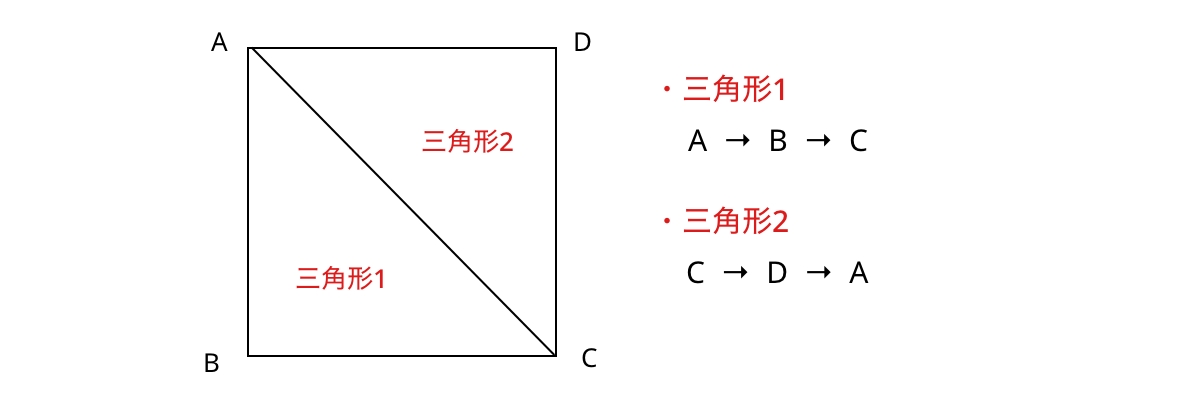
この頂点数を使って、Float32Arrayを作成し、ジオメトリの各属性に割り当てています。具体的には、positionsは頂点の座標、uvsはテクスチャ座標、imagesは画像インデックス、photoMinとphotoMaxは写真の最小・最大座標を格納しています。
螺旋の形状の作成
螺旋の形状を作っているのが、次のwriteSlideメソッドになります。1コマ分のフィルムを螺旋上の細長い板に分割し、その頂点を positions などの配列へ書き込みます。
writeSlideの全コード
private writeSlide(
slideIndex: number,
imageIndex: number,
film: BakedFilm,
positions: Float32Array,
uvs: Float32Array,
images: Float32Array,
photoMin: Float32Array,
photoMax: Float32Array,
vertex: number,
) {
const tau = Math.PI * 2;
const denom = this.slideCount * PRECISION;
for (let segment = 0; segment < PRECISION; segment++) {
const index = slideIndex * PRECISION + segment;
const i1 = index / denom;
const i2 = (index + 1) / denom;
const a1 = i1 * tau;
const a2 = i2 * tau;
const dy1 = i1 * this.waveLength - this.filmWidth;
const dy2 = i2 * this.waveLength - this.filmWidth;
const x1 = Math.cos(a1) * this.radius;
const z1 = Math.sin(a1) * this.radius;
const x2 = Math.cos(a2) * this.radius;
const z2 = Math.sin(a2) * this.radius;
const u1 = segment / PRECISION;
const u2 = (segment + 1) / PRECISION;
const corners = [
x1, this.filmWidth + dy1, z1, u1, 1,
x1, -this.filmWidth + dy1, z1, u1, 0,
x2, -this.filmWidth + dy2, z2, u2, 0,
x2, this.filmWidth + dy2, z2, u2, 1,
x2, -this.filmWidth + dy2, z2, u2, 0,
x1, this.filmWidth + dy1, z1, u1, 1,
];
for (let corner = 0; corner < 6; corner++) {
const source = corner * 5;
const position = vertex * 3;
const uv = vertex * 2;
positions[position] = corners[source] ?? 0;
positions[position + 1] = corners[source + 1] ?? 0;
positions[position + 2] = corners[source + 2] ?? 0;
uvs[uv] = corners[source + 3] ?? 0;
uvs[uv + 1] = corners[source + 4] ?? 0;
images[vertex] = imageIndex;
photoMin[uv] = film.photoMin.x;
photoMin[uv + 1] = film.photoMin.y;
photoMax[uv] = film.photoMax.x;
photoMax[uv + 1] = film.photoMax.y;
vertex++;
}
}
return vertex;
}長くなるので詳細は省きますが、positionsやuvsなどの配列へ頂点情報を書き込む部分で、以下の螺旋の数式を用いてフィルムを螺旋状に配置しています。
y軸方向は、GUI操作できるパラメータ(waveLength, filmWidth)に基づいて決まることになります。
const dy1 = i1 * this.waveLength - this.filmWidth;
const dy2 = i2 * this.waveLength - this.filmWidth;positions,uv,aImage,aPhotoMin,aPhotoMaxの各配列に書き出したものを、geometry.setAttributeでジオメトリに設定して完了です。
private createGeometry(films: BakedFilm[]) {
// ...
const geometry = new THREE.BufferGeometry();
geometry.setAttribute('position', new THREE.BufferAttribute(positions, 3));
geometry.setAttribute('uv', new THREE.BufferAttribute(uvs, 2));
geometry.setAttribute('aImage', new THREE.BufferAttribute(images, 1));
geometry.setAttribute('aPhotoMin', new THREE.BufferAttribute(photoMin, 2));
geometry.setAttribute('aPhotoMax', new THREE.BufferAttribute(photoMax, 2));
return geometry;
}続いては、頂点シェーダーを見ていきましょう
頂点シェーダー
頂点シェーダーは次のようになります。
varying vec2 vUv;
varying float vWorldY;
flat varying float vImage;
flat varying vec2 vPhotoMin;
flat varying vec2 vPhotoMax;
attribute float aImage;
attribute vec2 aPhotoMin;
attribute vec2 aPhotoMax;
void main() {
vUv = uv;
vImage = aImage;
vPhotoMin = aPhotoMin;
vPhotoMax = aPhotoMax;
vec4 worldPosition = modelMatrix * vec4(position, 1.0);
vWorldY = worldPosition.y;
gl_Position = projectionMatrix * viewMatrix * worldPosition;
}属性をそのままvaryingへコピーしたあと、ローカル座標をワールド座標にします。modelMatrixにはapplyが毎フレーム入れているY回転とY位置が入るので、vWorldYはスクロール後の高さになります。この高さを、フラグメントシェーダー側で上下の白のグラデーションに使います。
続いてフラグメントシェーダーを見ていきましょう。
フラグメントシェーダー
フラグメントシェーダーは次のようになります。
precision mediump float;
varying vec2 vUv;
varying float vWorldY;
flat varying float vImage;
flat varying vec2 vPhotoMin;
flat varying vec2 vPhotoMax;
uniform sampler2DArray uFilms;
out vec4 fragColor;
vec3 filmGrade(vec3 color) {
float luma = dot(color, vec3(0.299, 0.587, 0.114));
color = pow(max(color, 0.0), vec3(0.92));
color = color * 0.9 + 0.045;
color = mix(vec3(luma), color, 0.72);
luma = dot(color, vec3(0.299, 0.587, 0.114));
vec3 shadow = vec3(0.22, 0.12, 0.07);
vec3 highlight = vec3(1.0, 0.95, 0.86);
color = mix(color, mix(shadow, highlight, smoothstep(0.05, 0.85, luma)), 0.22);
return clamp(color, 0.0, 1.0);
}
void main() {
float amount = smoothstep(0.75, 1.0, abs(vWorldY)) * 0.75;
vec4 tex = texture(uFilms, vec3(vUv, vImage));
if (tex.a < 0.5) discard;
vec2 photoUv = (vUv - vPhotoMin) / (vPhotoMax - vPhotoMin);
float inPhoto = step(0.0, photoUv.x) * step(photoUv.x, 1.0)
* step(0.0, photoUv.y) * step(photoUv.y, 1.0);
vec3 color = mix(tex.rgb, filmGrade(tex.rgb), inPhoto);
color = mix(color, vec3(0.851, 0.855, 0.831), amount);
fragColor = vec4(color, 1.0);
}textureの第3成分が配列の層です。vImageは 0、1、2 のような整数が入っていて、その層のコマを選びます。
discardは、そのピクセルを描かず奥の背景を見せます。穴はclearRectでアルファ0になっているのでtex.a < 0.5の条件で判定しています。黒ベタのフィルム地はアルファ1のまま残ることにより、フィルムの形状を作成できます。
今回は、写真の部分だけフィルム調のエフェクトを掛けるようにしています。写真の部分を決めているのがinPhotoです。inPhotoが1のときだけfilmGradeが適用されるので、写真の外には影響しないようにできます。
amountは画面上下の白のグラデーションの量です。値が大きいほど背景色に近づき、値が小さいほど元の色が残ります。最後に背景色と混ぜることで、画面上下に向かって徐々に背景色に溶ける表現ができます。
最後に作成したFilmSpiralの使い方を見ていきましょう。
FilmSpiralの使い方
作成したFilmSpiralは、Appクラス内でbuildFilmSpiralメソッドを使って生成し、シーンに追加します。
import { FilmSpiral } from './FilmSpiral';
const PARAMS = {
radius: 1.2, // 螺旋の半径
waveLength: 1.7, // 1周で上がる高さ
filmWidth: 0.5, // フィルムの幅
}
export class App extends Three {
// ...
private buildFilmSpiral() {
if (this.filmSpiral) {
this.scene.remove(this.filmSpiral.group);
this.filmSpiral.dispose();
}
this.filmSpiral = new FilmSpiral(this.textures, PARAMS, this.targetRotation);
this.scene.add(this.filmSpiral.group);
}
private onWheel = (event: WheelEvent) => {
this.targetRotation -= event.deltaY / 400;
}
private animate = () => {
this.filmSpiral?.update(this.targetRotation, performance.now());
this.renderer.render(this.scene, this.camera);
}
}更新処理(update)は、FilmSpiralの状態を毎フレーム更新するためのメソッドです。スクロール処理で変化するtargetRotationや経過時間を渡すことで、螺旋の回転やアニメーションを制御します。
FilmSpiralのupdateメソッドの処理は次のようになっています。
export class FilmSpiral {
// ...
update(targetRotation: number, timeMs: number) {
this.rotation += (targetRotation - this.rotation) / 20;
const wobble = Math.sin(timeMs / 2000) / 500;
this.apply(wobble);
}
private apply(wobble = 0) {
const tau = Math.PI * 2;
const rotation = this.rotation + wobble;
const wrappedTurns = rotation / tau - Math.floor(rotation / tau);
const mid = (this.turns / 2) * this.waveLength - this.filmWidth;
this.group.rotation.y = wrappedTurns * tau;
this.group.position.y = -mid + wrappedTurns * this.waveLength;
}
}これで、スクロールで螺旋状のフィルムストリップが回転しながら上下に移動する表現ができるようになりました!
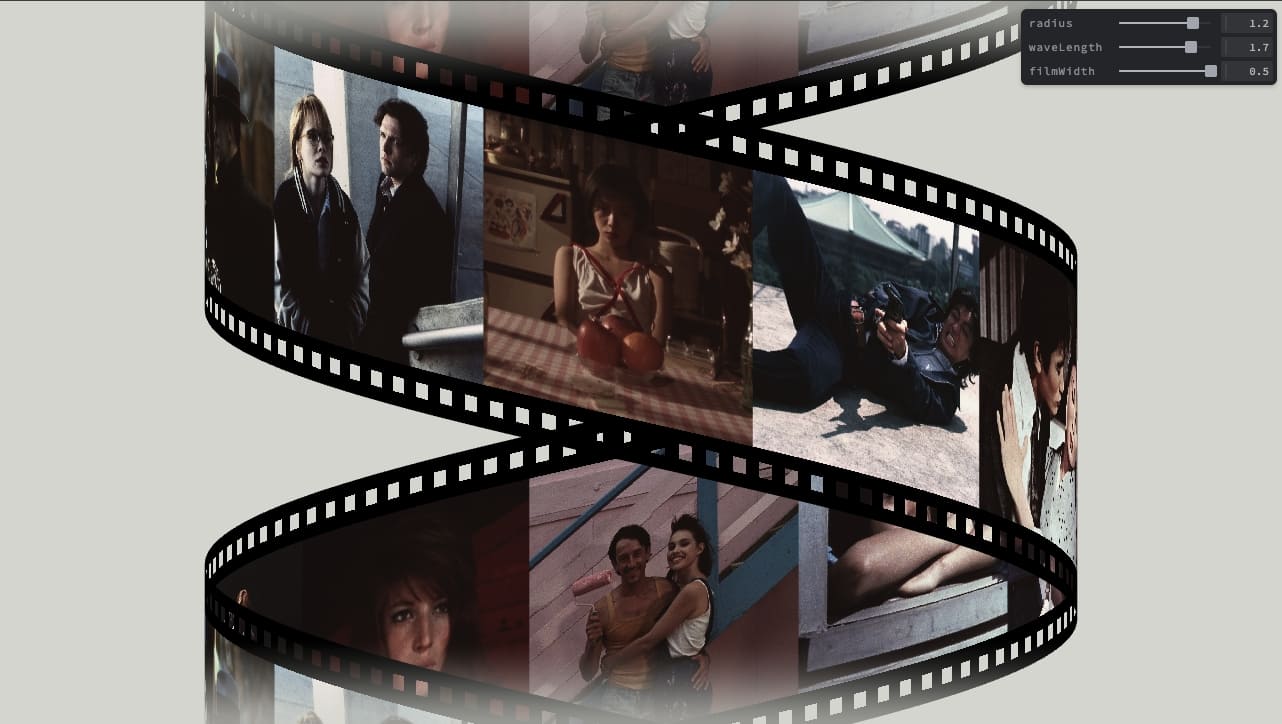
実際にコードとデモを確認してみてください!
まとめ
今回は、Three.jsで複数の画像をフィルムストリップに焼き込み、それを螺旋状に配置して、スクロールでY軸方向に移動・回転する3D画像スライダーの実装方法を解説しました。
フィルムの形状は画像を用意することなく、コードで再現できることが確認できたかと思います。このフィルムの配置を螺旋ではなく、別の形状に変更することも容易にできるので、他にも面白い表現ができそうですね。
ぜひ、いろいろ試してみてください!